

Documentation Index
Fetch the complete documentation index at: https://docs.peec.ai/llms.txt
Use this file to discover all available pages before exploring further.
Server URL
All platforms use the same URL:Authentication options
The server accepts two auth methods. Pick based on your client.- OAuth 2.0 (default for most clients). The first connection redirects you to Peec AI to sign in and approve access. Your session persists across conversations. Use for Claude Desktop, Claude Web, Cursor, VS Code, Windsurf, and any other client that walks through an OAuth consent screen.
- Personal Access Token (PAT). A long-lived bearer token tied to your Peec user. Use for clients that don’t support OAuth, headless setups, CI, or when you want to keep the token in your own secrets manager.
Create a Personal Access Token
Open API Keys
Sign in to app.peec.ai and go to API Keys in the sidebar.
Create a token
In the Personal Access Tokens section click Create token. Give it a name (e.g.
Claude Desktop, Cursor laptop) and pick an expiration: Never, 30 days, 60 days, or 90 days.Claude Desktop and Web (claude.ai)
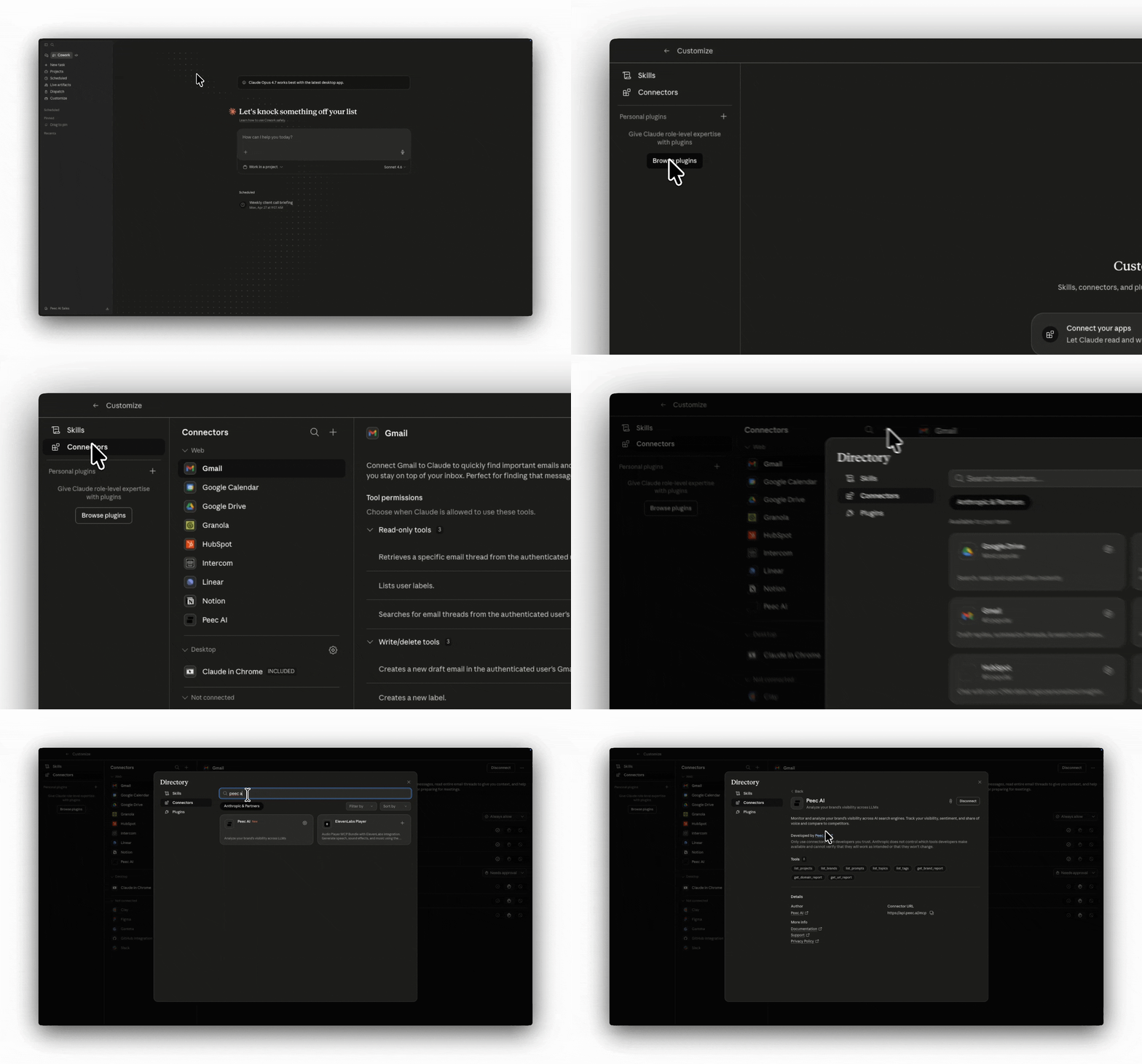
Claude Code (CLI)
OAuth (default):Cursor
Add server
Click Add Custom MCP and enter the server URL:Select Streamable HTTP as the transport type. To use a PAT instead of OAuth, add an
Authorization: Bearer YOUR_PEEC_PAT header on the connection.VS Code (GitHub Copilot)
Add a.vscode/mcp.json file to your workspace (or open the user-level config via the MCP: Open User Configuration command):
Windsurf
Other platforms
The Peec AI MCP Server uses Streamable HTTP transport and works with any AI tool that supports the MCP standard. Use the server URLhttps://api.peec.ai/mcp and configure your tool’s MCP settings accordingly. If the client doesn’t support OAuth, attach a Personal Access Token as an Authorization: Bearer <token> header.
Verify your connection
After setup, try asking your AI assistant:“List my Peec AI projects”You should see a list of projects your account has access to. If that works, you’re all set. From here:
- Run a built-in prompt (slash command) for a ready-made analysis like the weekly visibility pulse or competitor radar.
- Or browse the use cases for free-form question ideas.
Troubleshooting
“Authorization failed” or “Unauthorized”- Check that you signed in with the correct Peec AI account
- Try removing and re-adding the integration
- Clear your browser cookies for
api.peec.aiand try again - Using a PAT? Confirm the token isn’t expired or revoked in API Keys → Personal Access Tokens, and that the
Authorization: Bearer ...header is being sent.
- Make sure your account has access to at least one project in the Peec AI dashboard
- Check your internet connection
- Make sure the URL is exactly
https://api.peec.ai/mcp