

Agent Analytics gives you visibility into AI bot activity on your website. Using first-party data from your server logs is the most direct signal of how AI bots access your content.Documentation Index
Fetch the complete documentation index at: https://docs.peec.ai/llms.txt
Use this file to discover all available pages before exploring further.
Crawl Insights reveals AI bot activity directly from your server logs – showing which bots access which pages and folders, how often they visit, the status codes they receive, and how all of this links to your AI visibility.
Connecting your data
To get started, navigate to Crawl Insights in the side panel and connect a data source. We currently support two options:
- Cloudflare Workers: for continuous, real-time log ingestion if your site runs on Cloudflare.
- CSV/CLF File upload: upload a server log file directly to analyze a specific time period.
CSV/CLF files must have a .csv, .clf, or .txt extension.
Cloudflare Workers request limits may affect your data. On high-traffic sites, hitting Cloudflare’s daily Workers request limit can stop data collection and make your site inaccessible to visitors.See how to protect your setup below.
Cloudflare Worker limits
When you connect through Cloudflare Workers, every request your site receives, including from AI bots, counts toward your Workers request quota. All Cloudflare accounts include the Workers Free plan by default, which allows up to 100,000 requests per day and resets daily. This limit applies regardless of your Cloudflare site plan, because Business and Enterprise site plans are separate from the Workers plan. On high-traffic sites, this limit can be reached quickly. Once the limit is hit, two things can happen:- Peec stops receiving log data: For the remainder of that day, Peec stops receiving any log data coming from your domain, resulting in gaps in your Crawl Insights.
- Errors to visitors: Cloudflare routes default to Fail closed, meaning once the limit is hit, Cloudflare serves a 1027 error page instead of your site.
- Enable minimum safeguard: In your Cloudflare dashboard, set the route mode to Fail Open. Your site will remain accessible to visitors, though data collection will still be paused for the rest of the day.
- Upgrade to a Workers Paid plan: The Workers Paid plan removes the daily request cap, ensuring uninterrupted log ingestion and continuous data in Crawl Insights. You can find Cloudflare’s pricing page for details.
Dashboard Overview
Once the data is loaded, your dashboard will appear. Here, you can access key information and use different tools to analyze your data.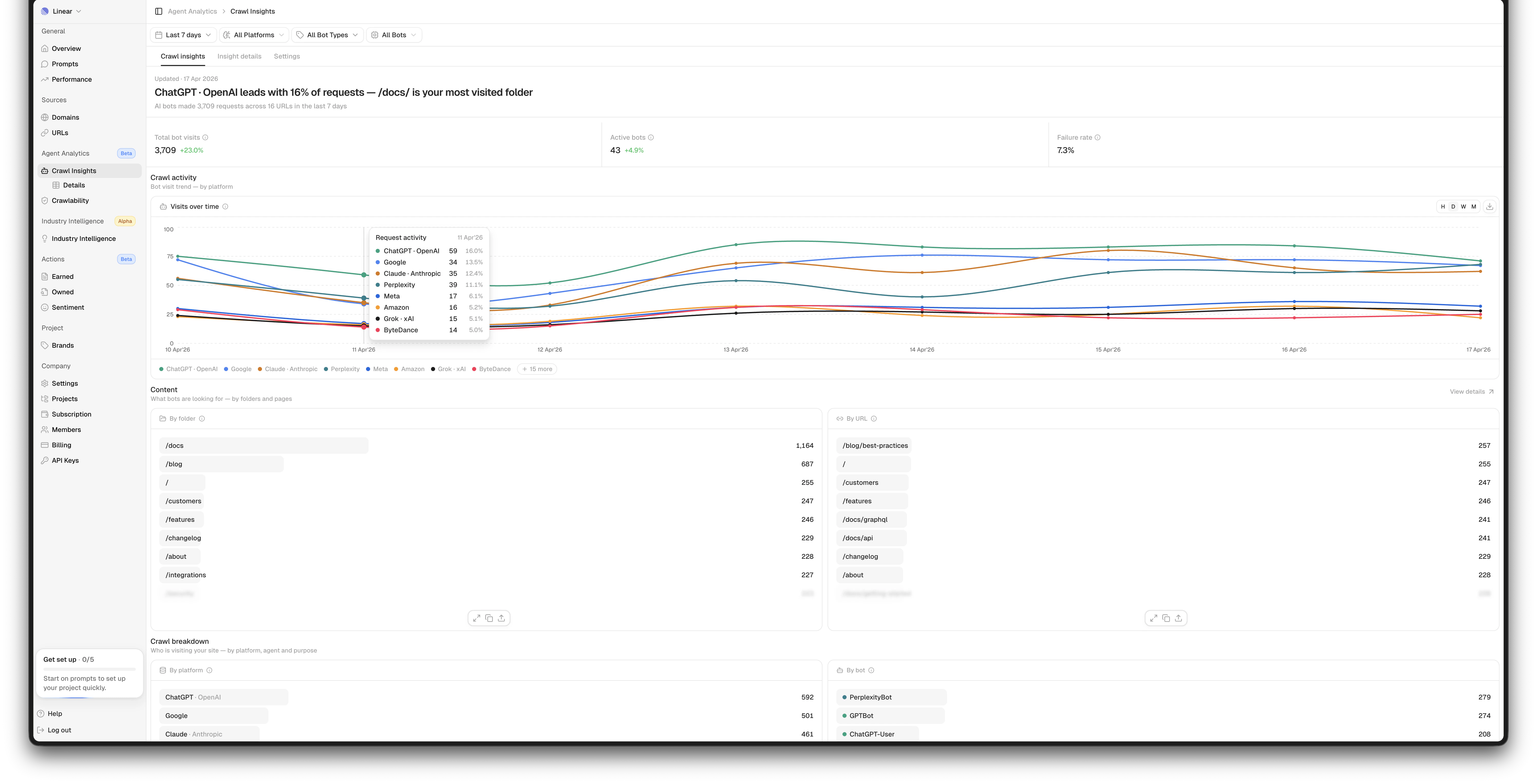
- Filters: Date, Platform (e.g., OpenAI, Google), Bot type (Training, Search, User Query, Other), and Bot (e.g., GPTBot, ClaudeBot)
- KPI Summary: A row of key metrics at the top gives you a snapshot of your filtered data based on total bot visits, active bots, and failure rate (e.g., proportion of requests that returned an error (4xx or 5xx))
- Crawl activity over time: The line chart shows AI bot visits, with a separate line for each AI model. Switch between hourly (only visible in a 3-day view), daily, weekly, and monthly views - daily is the default. Use this to spot trends, sudden spikes, or unexplained drops in bot activity.
- Content section: Further down, you’ll see AI bot traffic broken down by folder and URL, showing which parts of your site AI bots visit most.
Crawl breakdown
The crawl breakdown will show you a set of bar charts that break down bot visits by different dimensions.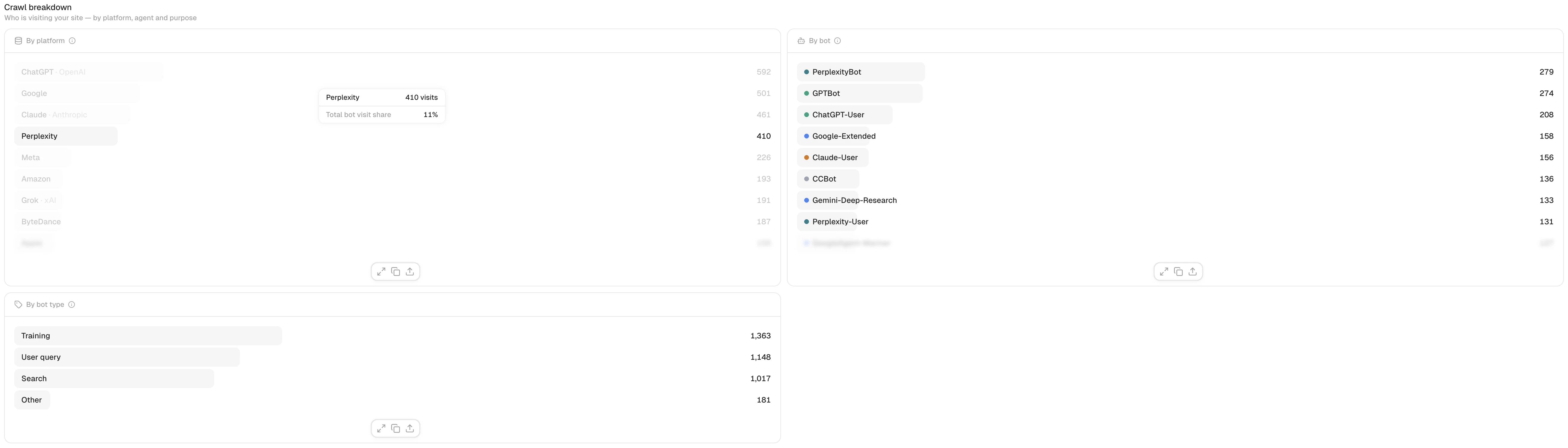
- Platform: the AI vendor (e.g., OpenAI, Anthropic, Google)
- Bot: the specific user agent (e.g., GPTBot, ClaudeBot, PerplexityBot)
- Bot type: Training / Search / User query / Other
The Bot type indicates the purpose of the crawl:
- Training bots collect data to build or refine AI models.
- Search bots browse the web to find up-to-date information when needed.
- User Query bots access your website to fetch content on behalf of a user.
Detailed Insights
Insight Details provides a URL-level breakdown of AI bot activity and source performance. You can access it from the in-page navigation bar or by clicking the See Details button above the By URL chart. In here you will see:- Filters: The same global filters apply (date range, platform, bot type, bot). Within the table, you can also filter by folder (drill into a specific section of your URL structure) and status code (show only URLs that returned a specific HTTP response (e.g., 200, 404, 500)). You can also use the table’s search bar to quickly find a specific URL.
- KPI summary:
- Total bot visits: Total requests across all URLs in the selected filters
- Active bots: Number of distinct bots active in this view
- Failure rate: Proportion of requests that returned an error (4xx or 5xx status code)
- Top-visited folder: The top-level section of your site (e.g., /blog/, /products/) receiving the most bot visits
- Top-visited URL: The single URL receiving the most bot visits
Visited URLs table
This table shows the pages on your site that can be crawled and actively indexed, with detailed information for each. This will give you a quick overview of which pages are receiving bot visits, how often they occur, and how this differs across all bots currently visiting that page. You will see:- URL: The requested page path from your domain
- Folder: The primary section or directory the URL belongs to
- Bot visits: Total AI bot visits to this URL in the selected period
- Platforms: Bot visits by the vendor behind the bots requesting the URL
- Status codes: The HTTP response the server returned to bots
- Retrievals: The sum total of how many times this URL appeared as a source in AI chat responses
- Citation rate: Average number of inline citations per chat when this URL is retrieved as a source
- Topics: How many of your tracked topics had prompts where this page appeared as a source
Prompt data comes from the prompts you are tracking. It is not influenced by AI bot activity.
Settings
Under Settings, you can easily manage your connection to Cloudflare or any other provider. If you need to connect a new provider, you can easily disconnect and connect to ensure a seamless migration and avoid data gaps. You can also delete all of your log file data. Please note that this action is irreversible and the data can not be recovered.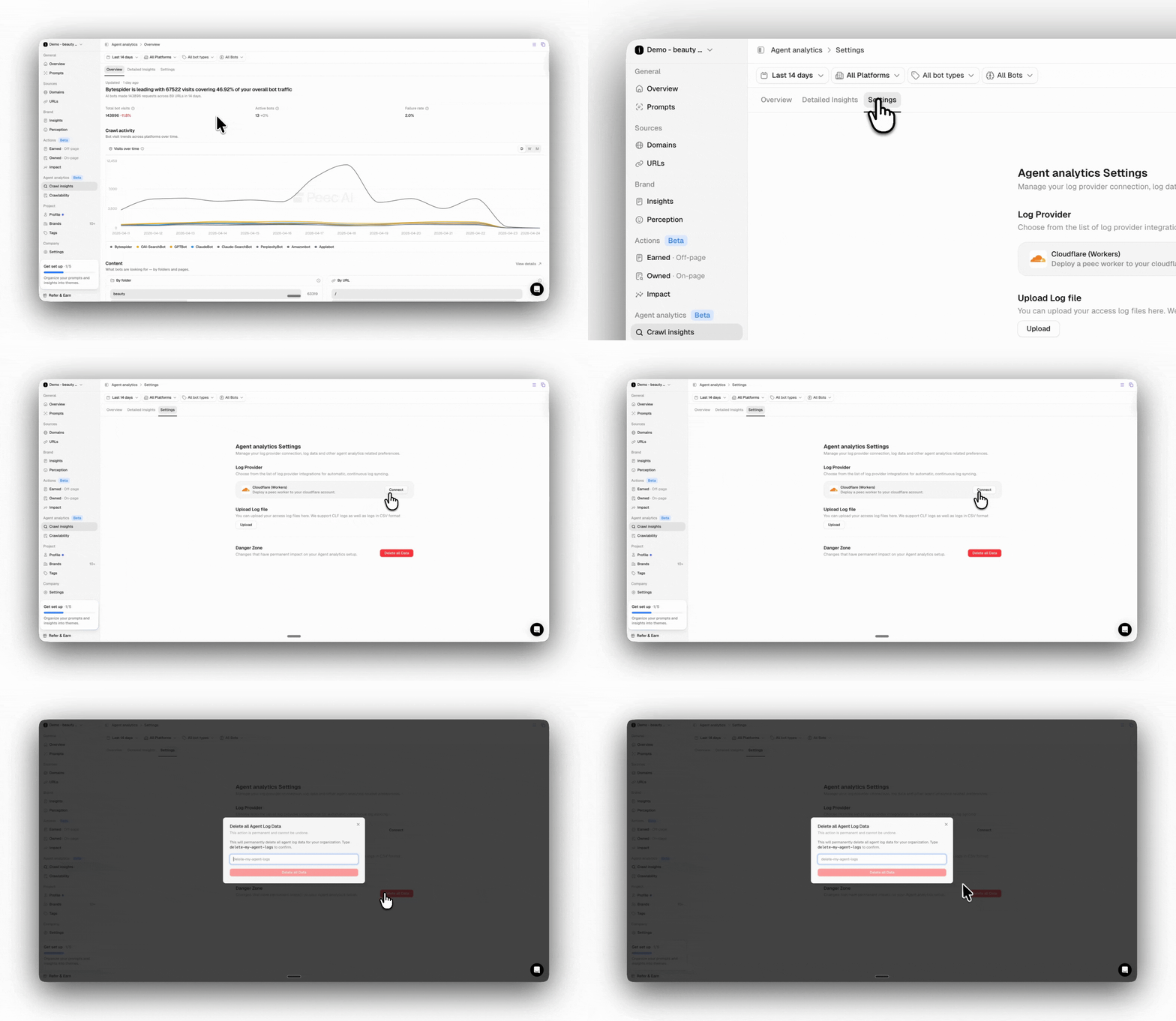
Status Codes
Status codes show how your server responded to AI bot visits, based on your connected log data. The overview table always shows a baseline set of status codes, even if they have zero visits in your log data. Additional codes appear only when present in your logs.| Status code | Description |
|---|---|
| 200 | OK |
| 301 | Moved Permanently |
| 302 | Found (Temporary Redirect) |
| 304 | Not Modified |
| 307 | Temporary Redirect |
| 308 | Permanent Redirect |
| 401 | Unauthorized |
| 403 | Forbidden |
| 404 | Not Found |
| 410 | Gone |
| 429 | Too Many Requests |
| 500 | Internal Server Error |
| 502 | Bad Gateway |
| 503 | Service unavailable |
| 504 | Gateway Timeout |
FAQs
How do I connect?
How do I connect?
Go to Crawl Insights and follow the setup prompt. The method depends on your hosting setup:
- If you use Cloudflare, you’ll connect via a Cloudflare Workers, which streams your logs to Peec in real time.
- If you use another provider or prefer to upload a specific dataset, use the CSV or CLF file upload option — just drag and drop your log file or select it from your file picker.
How do I disconnect?
How do I disconnect?
Go to Crawl Insights → Settings. You’ll find the disconnect option in the danger zone. Disconnecting stops log syncing. Disconnecting does not automatically delete historical data.
What plans are agent analytics available on?
What plans are agent analytics available on?
Agent Analytics is currently available to all accounts. Usage limits may be introduced in the future as we continue to scale the feature.
Does my Cloudflare plan affect how much data is collected?
Does my Cloudflare plan affect how much data is collected?
Yes. If you’re on Cloudflare’s free plan, your Worker is limited to 100,000 requests per day. On high-traffic sites, this may mean not all bot requests are captured. Upgrading to a paid Cloudflare Workers plan removes this limit.
Can I request my data to be deleted?
Can I request my data to be deleted?
You can request the deletion of your data at any time by contacting our support team or navigating to settings in the danger zone.